
Help & Support
Secret Store keeps your API keys, access tokens, recovery codes, connection strings, and private notes in Apple’s iCloud Keychain — the secrets that don’t fit a password manager’s username-and-password login form. Every secret is just a name and a value, and the value is end-to-end encrypted by Apple. This page covers the common questions. If yours isn’t here, email me — it goes straight to a person.
What goes in Secret Store
Secret Store is for the sensitive strings a password manager’s login form
can’t hold — the kind of value you’d otherwise paste into a .env file, a
config, or a terminal.
Goes in Secret Store:
- API keys & access tokens
- OAuth & app client secrets
- Database & connection strings
- Two-factor recovery & backup codes
- SSH & GPG keys
- License keys & private notes
Belongs elsewhere:
- Website logins — Passwords app
- Credit card numbers — Apple Wallet
- Passkeys — iCloud Keychain
- Files, documents & certs — iCloud Drive
- Photos or scans — Photos
- Shared team secrets — Passwords shared groups
Adding a secret
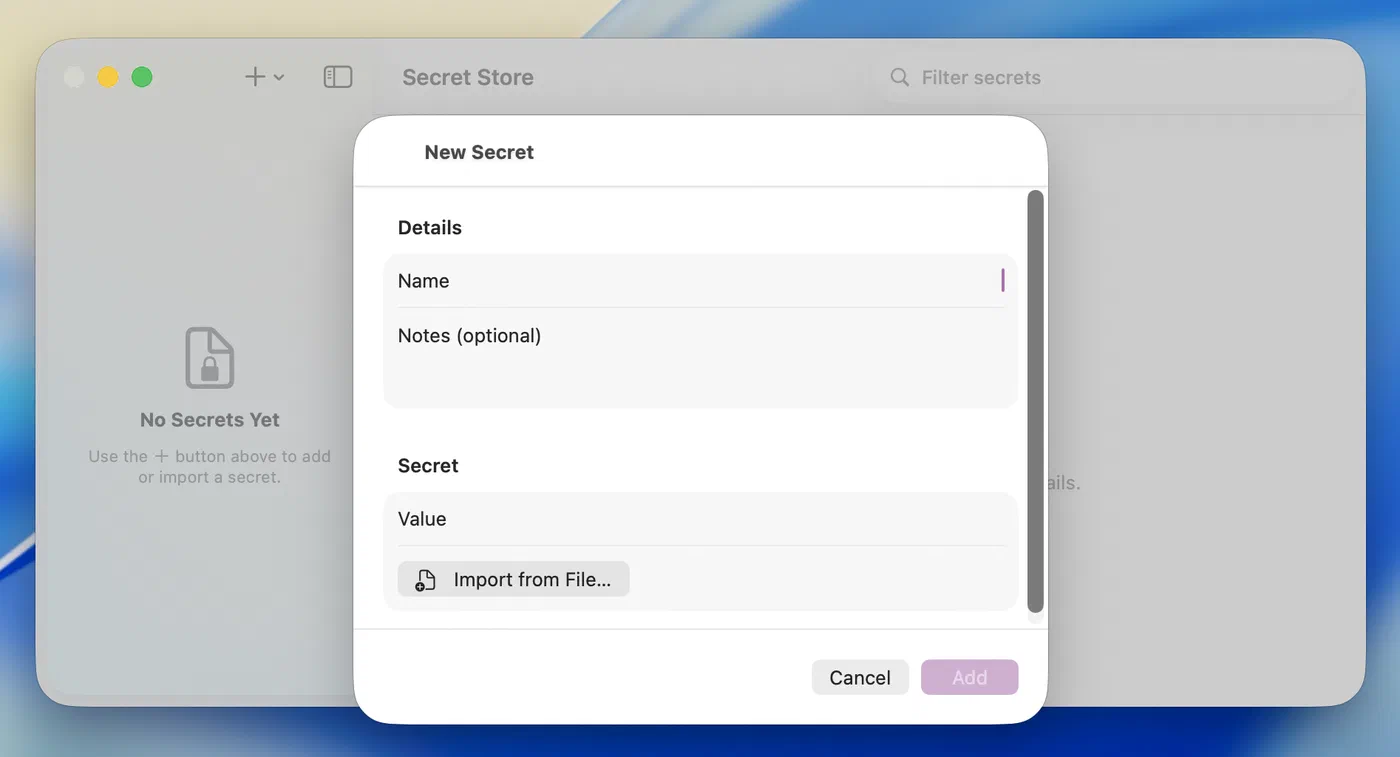
Click + in the toolbar, or choose Secrets ▸ New Secret (⇧⌘N). Give it a name and paste the value. In the list the value stays masked — click it in the detail pane to reveal or copy it.
Loading a value from a file
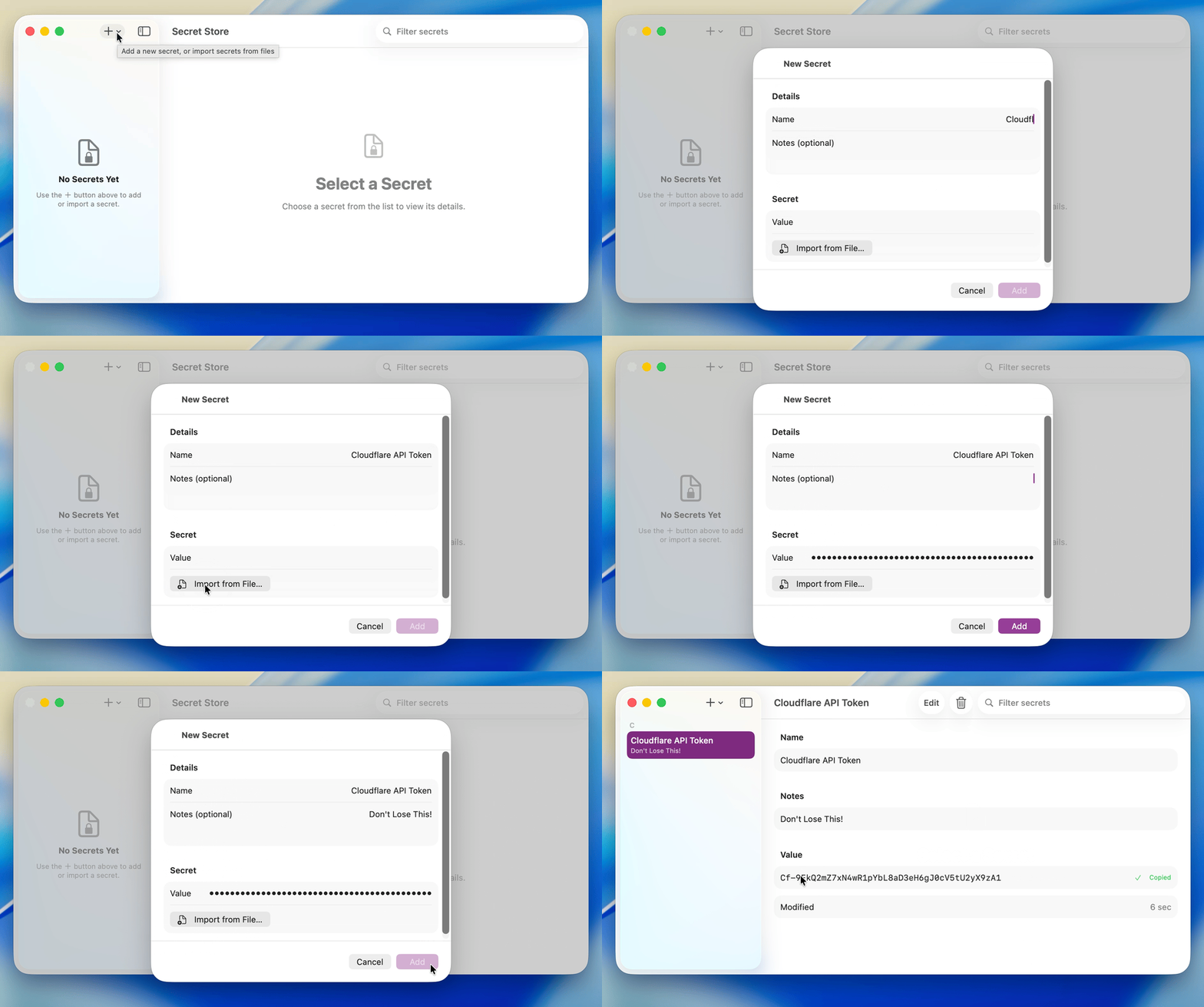
You don’t have to paste a value by hand. In the New Secret sheet, click
Import from File… to load the value from a file you choose — the file’s text
becomes the secret’s value (UTF-8, up to 128 KB; RTF, Word .docx, and PDF files
have their text extracted — see Importing from rich-text and document formats).
Only the one file you pick is read, read-only, and this works on the free tier.
Importing secrets from files
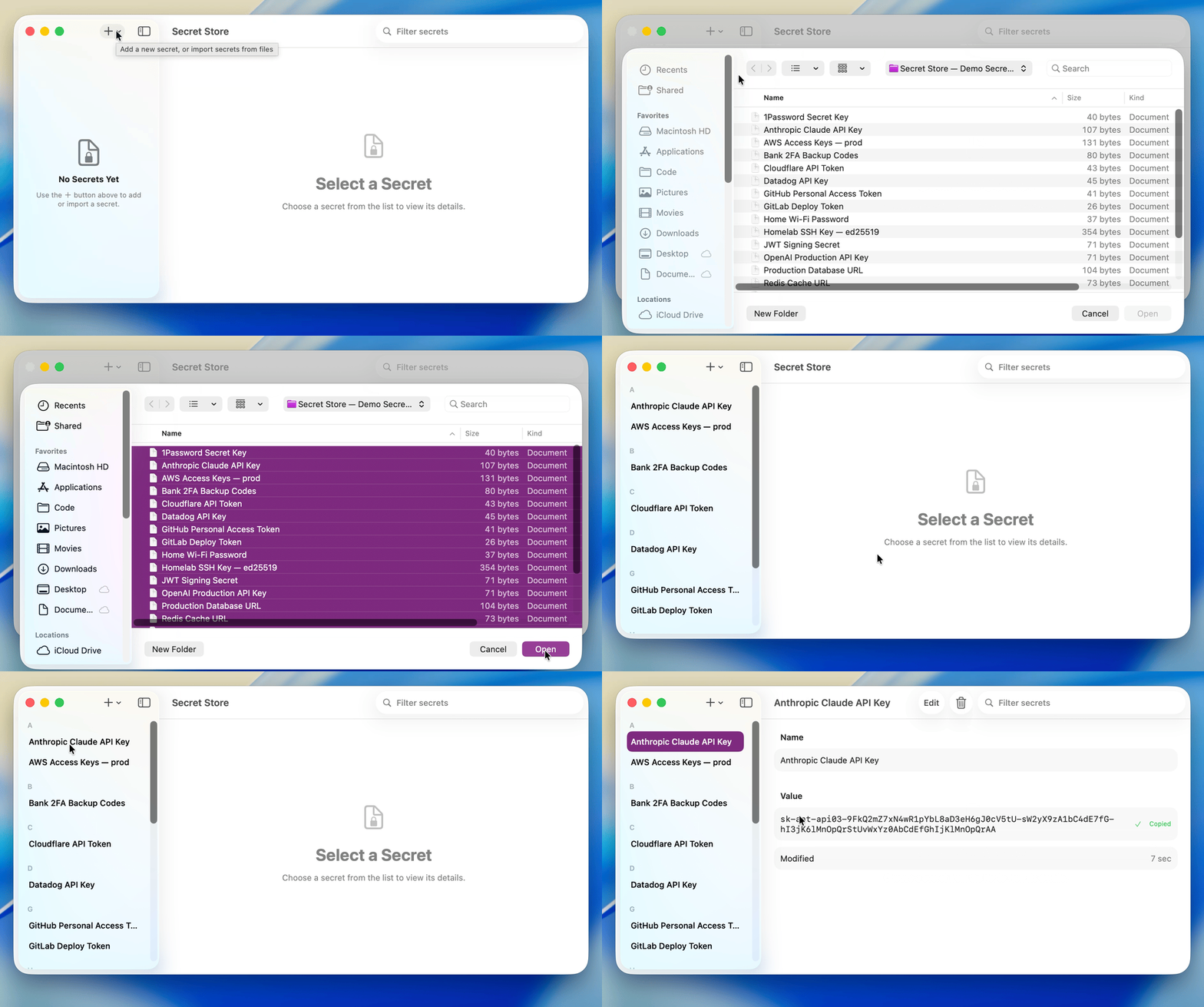
Choose Secrets ▸ Import Secrets… (⇧⌘I) and pick one or more files. Each file becomes one secret:
- The filename becomes the secret’s name.
- The file’s text becomes the secret’s value, verbatim.
Each secret’s value is capped at 128 KB. A plain-text file has to fit that
directly; an RTF, Word .docx, or PDF file can be larger (up to a few MB) as
long as the text it contains fits — Secret Store extracts that text first (see
the next section). Anything binary, empty, or whose text is too large is skipped
with a note, and the rest of the batch still imports.
Importing is part of Secret Store Unlimited — see below.
Importing from rich-text and document formats
Some files wrap their text in formatting or a document container. Stored
verbatim, that wrapper would leave you with an unreadable secret — for example an
RTF file is plain text under the hood, but surrounded by markup like
{\rtf1\ansi …} with font and color codes.
So when Secret Store recognizes one of these formats — on a bulk Import Secrets… or when you use Import from File… in the New Secret sheet — it extracts the plain text, keeping the words and numbers and dropping the fonts, colors, layout, and container:
| Format | What’s extracted |
|---|---|
| RTF (TextEdit, many note apps) | The text, minus all formatting |
Word .docx | The document’s text |
| The text layer |
Everything else that’s already plain text — .txt, .json, .env, .csv,
keys, and so on — is imported exactly as-is.
This extraction is best-effort, so verify it:
- Reveal the imported secret and compare it to the original file before you delete the original. Confirm every character — codes, punctuation, and line breaks — came through. PDFs especially can shift spacing or line breaks when the text is pulled out of the page layout, and a scanned/image-only PDF has no text to extract.
- Files Secret Store can’t read as text (images, and other binary formats it doesn’t recognize) are skipped with a note, never imported as garbage.
The free tier and unlocking Unlimited
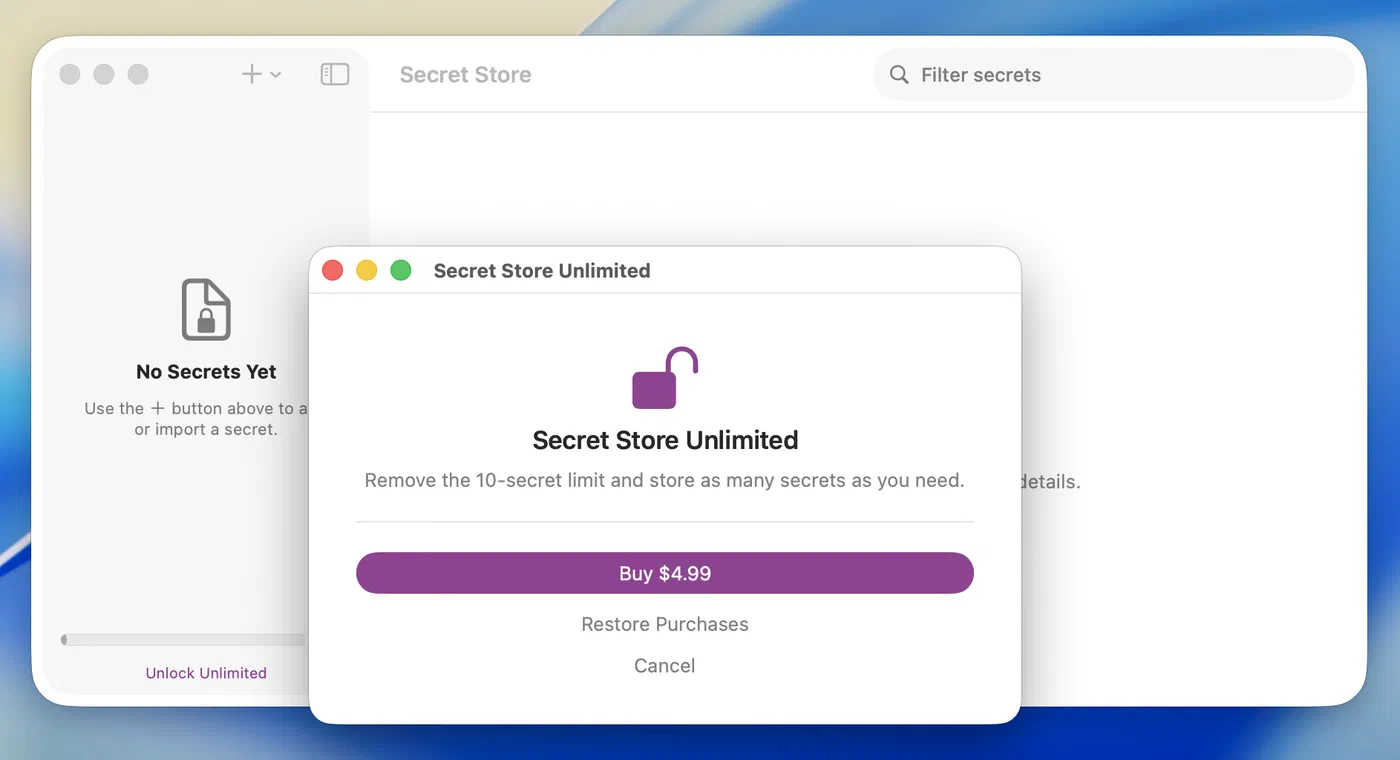
Secret Store is free to download and free to use for your first 10 secrets, with no time limit. A single one-time In-App Purchase ($4.99) removes that cap for good:
- It unlocks unlimited secrets and file import.
- There’s no subscription — you pay once.
- Family Sharing is supported, and the unlock applies to every Mac you own that’s signed into your Apple Account.
- Every future feature is included — no paid upgrades.
To buy it, choose Secret Store ▸ Unlock Secret Store Unlimited… from the menu bar. Already paid (new Mac, reinstall, or a family member’s purchase)? Choose Secret Store ▸ Restore Purchases.
Where your secrets are stored
Your secrets live in Apple’s iCloud Keychain — the same end-to-end encrypted store as your Safari passwords. There is no Secret Store account and no Secret Store server: the app reads and writes the keychain on your Mac and nothing else. The encryption is entirely Apple’s; Secret Store never wraps, re-encrypts, or transmits your values.
Your secrets aren’t locked in
Because Secret Store just uses the keychain, your data is never trapped inside the app. You can read any secret directly with Apple’s built-in Keychain Access app (in Applications ▸ Utilities, or open it from Spotlight) — even with Secret Store uninstalled.
Each secret is stored as a pair of keychain items, linked by a shared Account value (a long UUID shown in Keychain Access):
com.coreydaley.secretstore.val— the secret’s value.com.coreydaley.secretstore.meta— its name and notes.
To read a value:
- In Keychain Access, type
secretstorein the search box. - Double-click a
…secretstore.valitem. - Check Show password and authenticate with your Mac login password (or Touch ID).
- The revealed text is a small piece of JSON — your secret is the part after
"value":. The matching…secretstore.metaitem (same Account UUID) reveals the name the same way, so you can tell which is which.
This is deliberately one item at a time — there’s no bulk export — but it means your secrets are always recoverable on your own terms, with no Secret Store account or server in the loop.
Syncing across your Macs
Because secrets live in iCloud Keychain, they sync automatically to every Mac signed into the same Apple Account — there’s nothing to configure inside Secret Store itself. For sync to work, each Mac needs three things turned on:
- Signed into iCloud with your Apple Account — the same account on every Mac.
- Two-factor authentication enabled for that Apple Account (iCloud Keychain requires it).
- iCloud Keychain turned on: open System Settings ▸ your Apple Account ▸ iCloud, then turn on Passwords & Keychain (on some macOS versions you’ll find it under iCloud ▸ See All). Do this on each Mac you want to sync.
Sync is handled entirely by Apple — Secret Store never touches the network. To check the connection, open Secret Store ▸ Diagnostics (⇧⌘D): it shows when your secrets last changed and has an Open iCloud Settings… button that jumps straight to the settings above.
Locking and unlocking
Secret Store locks itself behind a privacy screen so your secrets aren’t left on display. It locks when:
- it’s been idle for five minutes (a fixed timeout, like Apple’s Passwords app), or
- your screen sleeps or locks, or
- you lock it yourself with Secret Store ▸ Lock Secret Store (⌘L).
To unlock, use Touch ID or your Mac’s login password — the same gate that protects your Mac. There’s no separate Secret Store password.
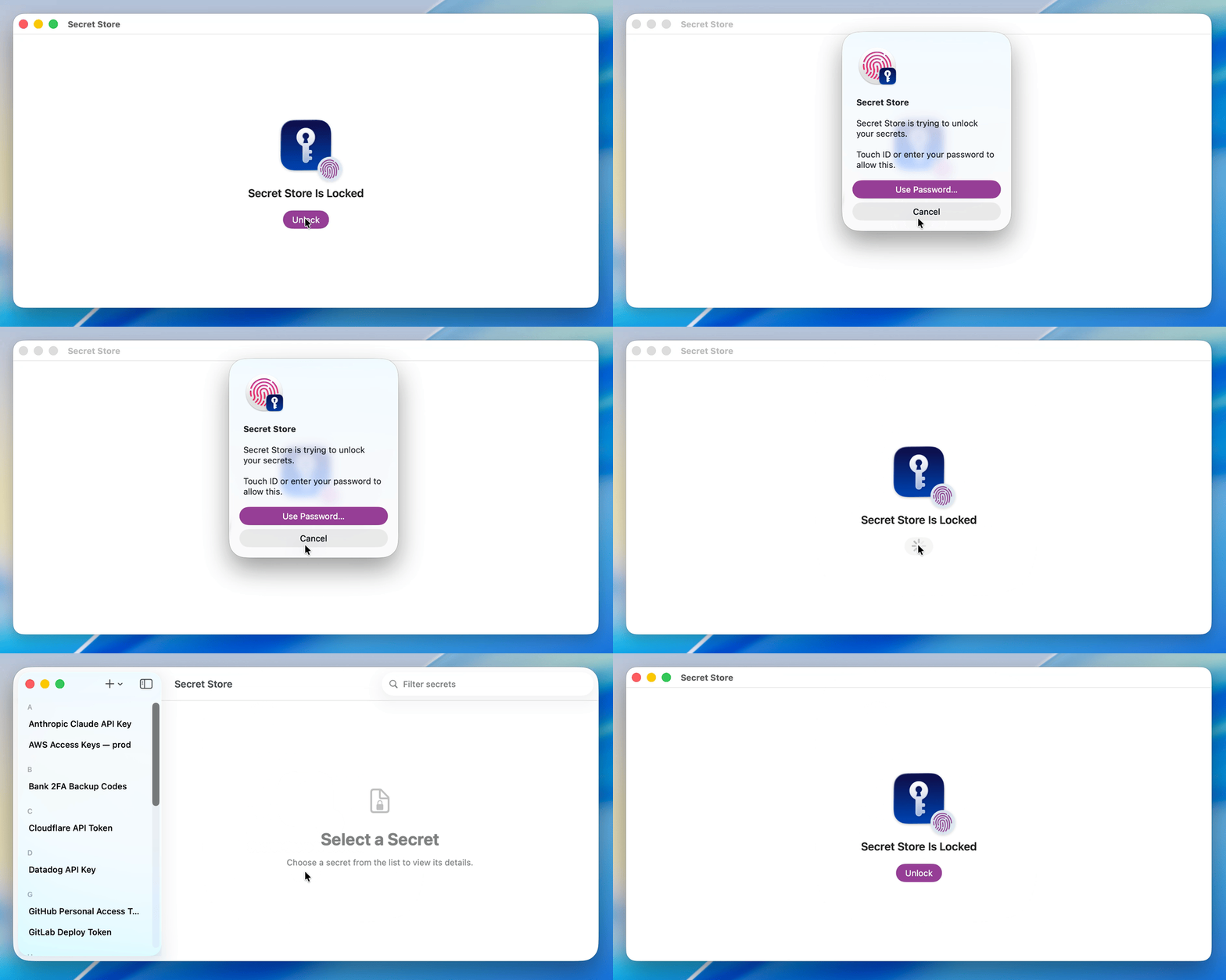
Switching to another app does not lock the vault (so you can copy a value into another app), but any value you’d revealed is re-masked the moment you switch away, so it never shows in a Mission Control thumbnail.
Copying a value
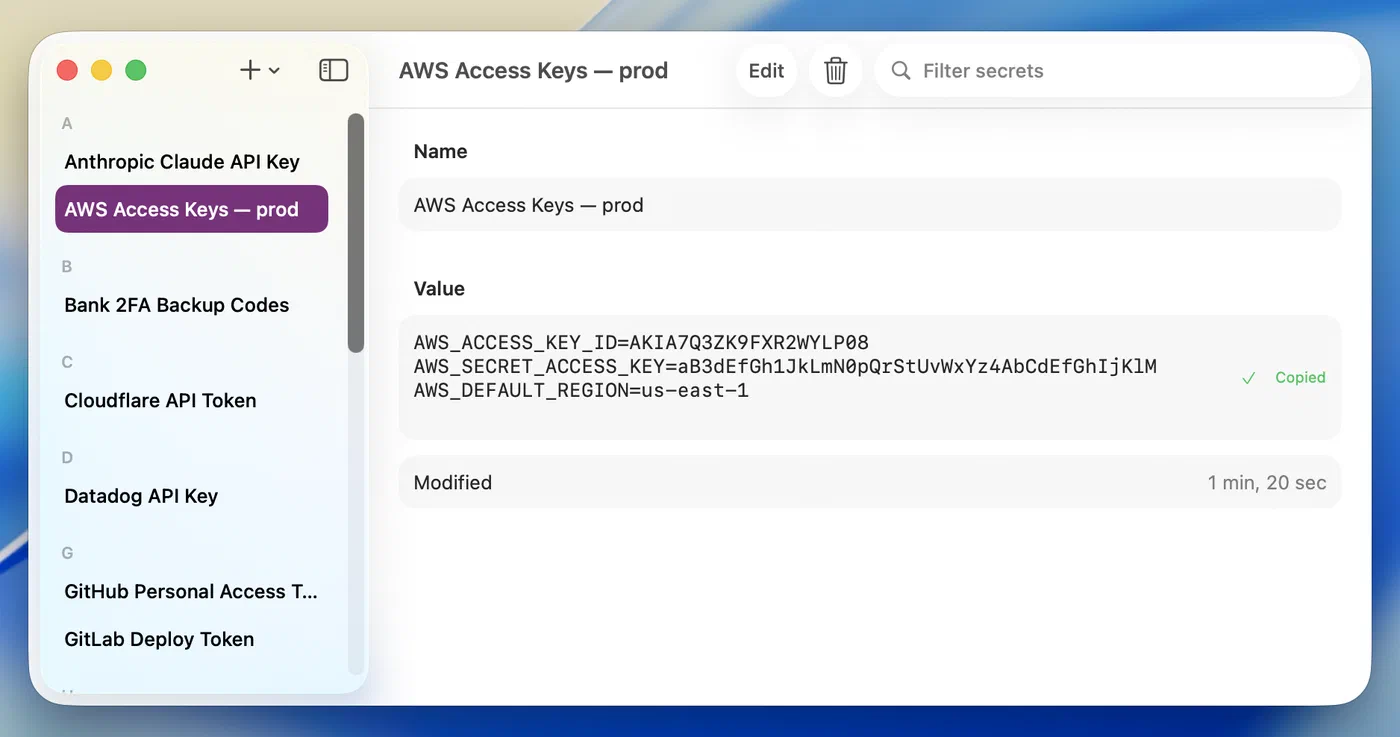
Click a secret’s value to copy it. The copy is flagged so clipboard managers and Universal Clipboard skip it, and the clipboard clears itself 90 seconds later — unless you’ve copied something else in the meantime, in which case your newer copy is left alone.
Editing and deleting
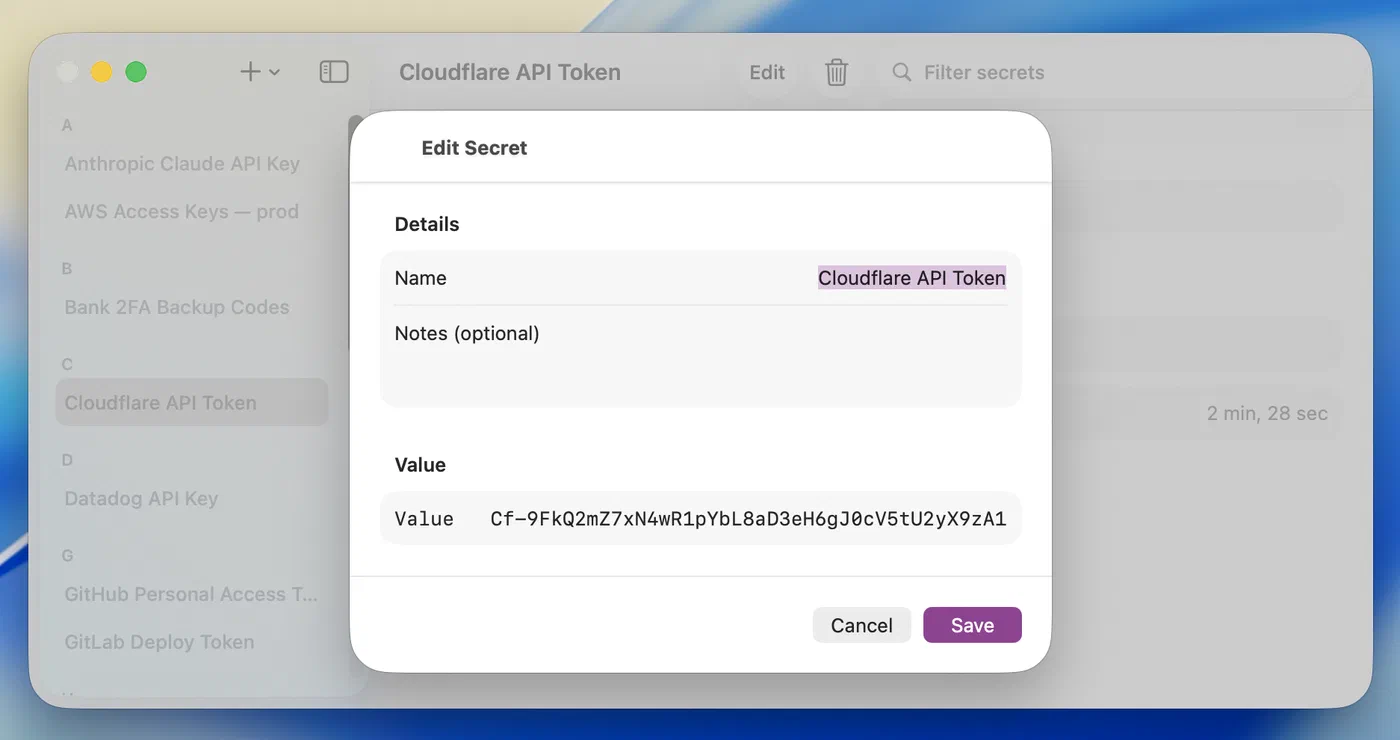
Select a secret and use Edit or the trash button in the toolbar. Deleting a secret removes it from your keychain and syncs the deletion to your other Macs. There’s no Secret Store server keeping a copy, so nothing lingers after you delete it.
Diagnostics and troubleshooting
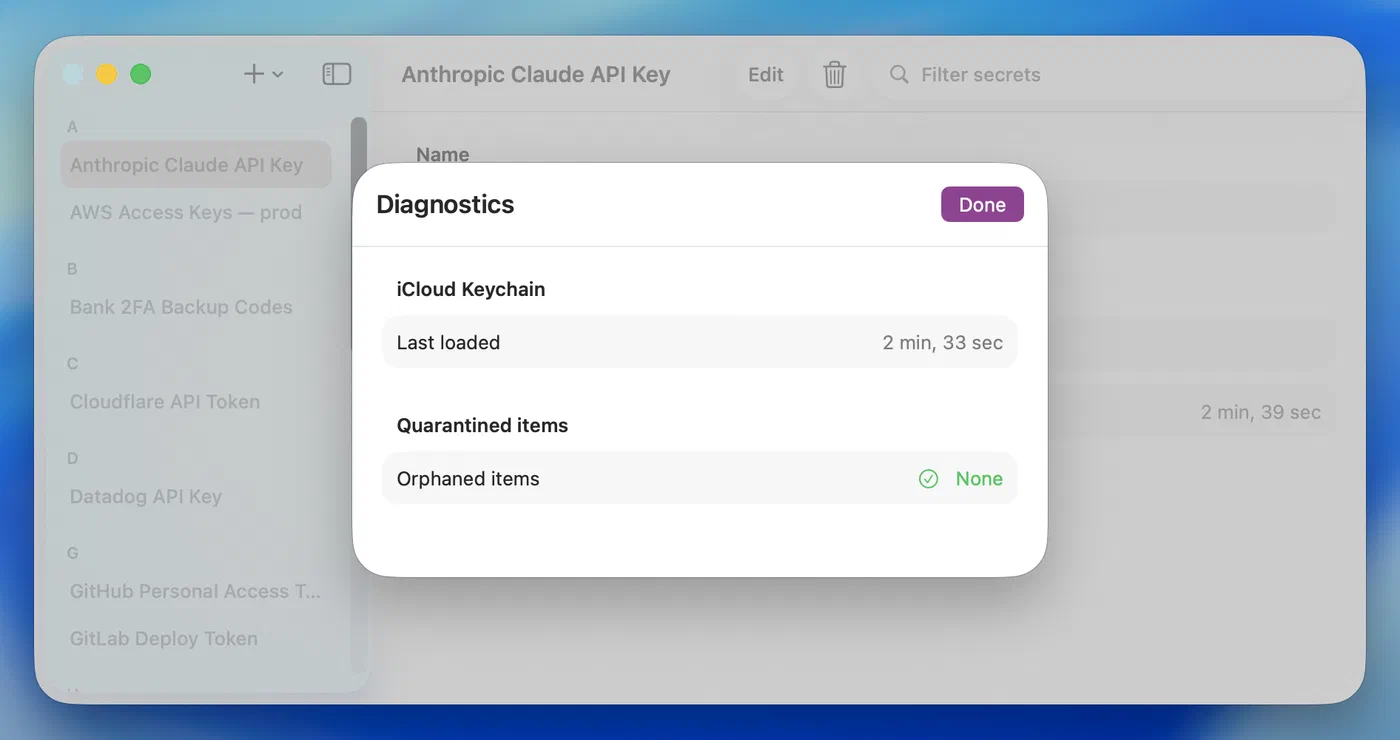
Open Secret Store ▸ Diagnostics (⇧⌘D) to see the iCloud Keychain status:
- Secrets last changed — when the app last saw your secrets change, either from a local edit or a change synced from another device. (iCloud Keychain doesn’t expose a sync time, so this reflects the last change Secret Store observed.)
- Orphaned items — normally None. If an interrupted sync ever leaves a stray item, the count appears here (and in the menu as “Diagnostics (N to repair)”) so you can clean it up.
Secrets aren’t syncing to another Mac? Make sure iCloud Keychain is turned on on both Macs (System Settings ▸ your Apple Account ▸ iCloud ▸ Passwords & Keychain) and that both are signed into the same Apple Account.
Bought Unlimited but it’s still locked? Choose Secret Store ▸ Restore Purchases.
Touch ID not recognizing you? Choose Use Password… in the unlock prompt and enter your Mac’s login password.
Still need help?
Email corey@secretstore.app. Secret Store is made by one person, so your message reaches the developer directly.